

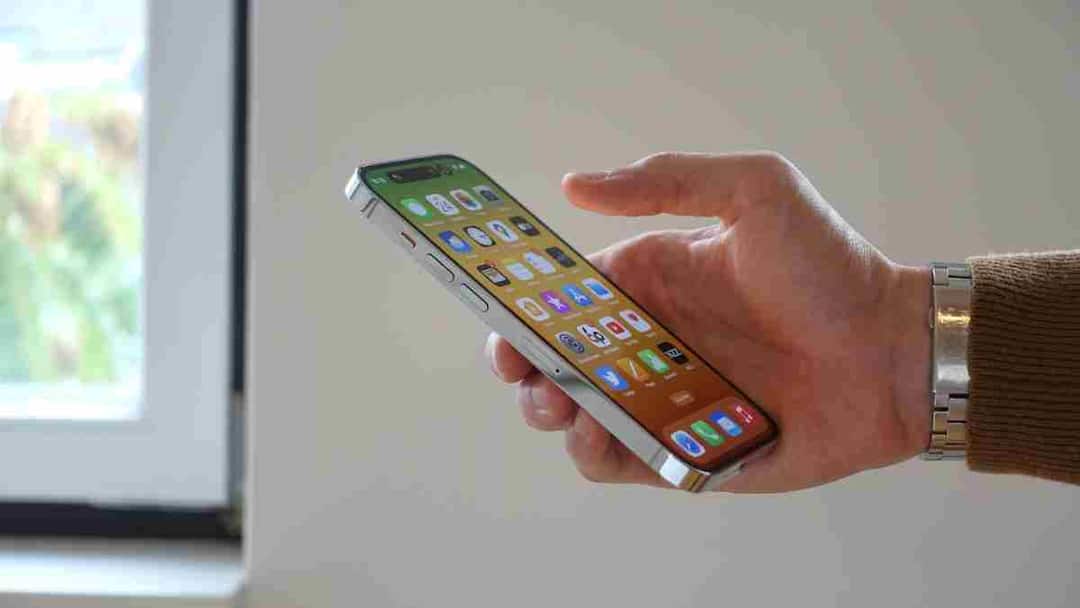
iPhone Voice Message: In today’s time, the way of communication on iPhone has changed a lot. Instead of typing, people are increasingly preferring to send voice messages, especially on apps like iMessage and WhatsApp. If you are using iPhone 16 or iPhone 17, then this question might have come in your mind that where are the voice messages saved, how to listen to them again and is it possible to reply in voice automatically. Here you will get clear and easy answers to every question.
Where are voice messages saved in iPhone?
In the latest iOS version of iPhone, voice messages are not saved in the phone like normal audio files. Unless you save them manually, they’re limited to the app in which they were sent or received.
The Truth About iMessage Voice Notes
Voice messages sent or received through iMessage remain directly within the Messages app. In the default setting, these are automatically deleted after a few minutes of listening. If you want that it should not be removed automatically, then it can be changed from the Audio Messages option of Messages by going to Settings. Saved voice notes are visible in chat but not in the Music or Files app unless you export them.
Where do WhatsApp voice messages go?
Voice messages received on WhatsApp remain saved within the app and you can listen to them again by going to the same chat at any time. If media auto-download is on in your phone, then their audio files can also be found inside the Media folder of WhatsApp in the Files app.
How to listen to voice message in iPhone?
It is quite easy to listen to voice messages on iPhone 16 and iPhone 17. In iMessage, simply open the Messages app, go to that chat, and tap the Play button. If you want, you can listen privately by putting the phone to your ear or can also play it on speaker.
The method is almost the same in WhatsApp also. As soon as you open the chat and tap on the voice message, the audio starts playing. Depending on the way you hold the phone, the iPhone itself decides whether the sound comes from the speaker or the earpiece. In WhatsApp, there is also an option to listen to voice messages quickly by increasing the speed.
Is Auto-Reply to Voice Message possible on iPhone?
At present, Apple does not provide the facility of completely automatic voice reply, but some smart methods are definitely available. Through Focus Mode you can set auto text reply especially in Driving Focus. In this, a fixed message is automatically sent to the other person.
Apart from this, with the help of Siri you can dictate answers in voice. Siri sends your spoken words as text or voice messages, although this is not completely automatic. Some third-party apps also exist but they have limitations due to Apple’s privacy policy.
Easy ways to manage voice messages better
If you frequently use voice messages, it may be beneficial to change the iMessage auto-delete setting. It is also wise to save important voice messages in time and keep iCloud backup on. Features like Siri announcements make the hands-free experience even easier.
finally understand the real thing
Using voice messages on iPhone 16 and iPhone 17 is easy, just their storage and settings are a bit hidden. Once you understand where voice messages live and how they are managed, both listening and responding become hassle-free.
Also read:
Ads will not be visible on YouTube! This method is amazing, 99% people do not know this jugaad

