
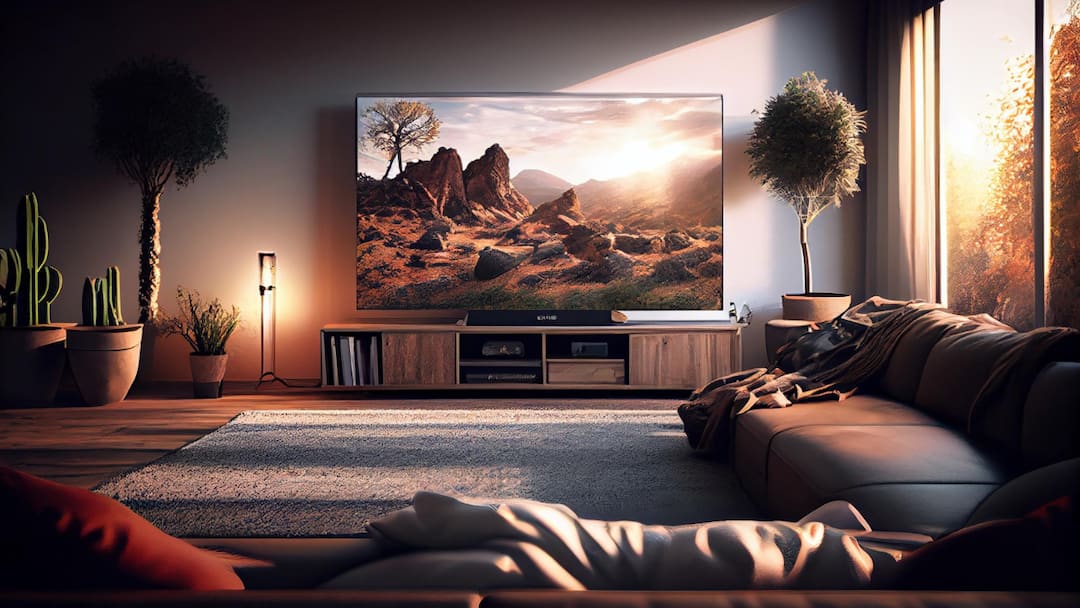
Watching movies and web series on smart TV is fun only when the colors look amazing. Many times, due to settings or other reasons, colors appear bad, which spoils all the fun. If the colors are looking bad on your TV, it does not mean that there is some fault in the panel. This may also be due to display settings, picture preset or mode. Today we are going to tell you which settings need to be adjusted for vibrant color.
change picture mode
Picture preset or mode can be one of the reasons for poor color appearance on Smart TV. In new TVs the picture preset is being set to Vivid, Dynamic or Standard. If you are not enjoying watching TV at this setting, then you can go to Display or Picture settings and select other modes including Cinema and Movie.
Adjust brightness, backlight and contrast
Some people adjust brightness to fix color related problems. Let us tell you that just adjusting the brightness will not solve this problem. You need to adjust the brightness as well as the backlight and contrast. To adjust brightness, always select the night scene of a movie or web series.
Disable power saving mode
If power saving mode is enabled on your smart TV, then disable it. Actually, in power saving mode, the TV automatically reduces the brightness and backlight, due to which the colors appear bad. This mode is enabled by default in TVs of many companies, so disable it.
It is necessary to adjust the RGB range
If you watch any content on smart TV after computer, then you can feel a lot of difference between the two. This happens due to the difference in RGB range. Devices like computers always operate on the full RGB range (0-255), while devices like TVs operate on the limited RGB range (16-235). Therefore, due to mismatch in the ranges of both, there is a difference in content. This option may also be given by the name HDMI Black Level, RGB Range or any other name in different TVs.
Read this also-
Apart from coding and learning, for what other purposes is ChatGPT being used in India? All the information came out