

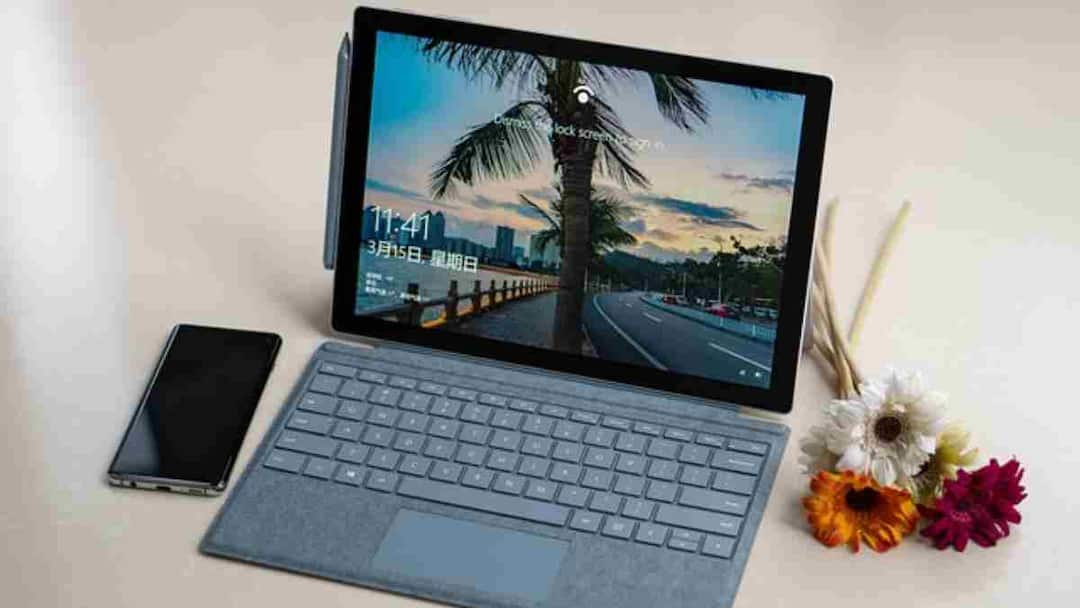
Windows PC: Many times it happens that after using it for some time, the Windows computer starts running slower than before. Apps open late, the system starts hanging and it becomes difficult to work. There can be many reasons behind this like too many programs running in the background, storage getting filled or system not being updated. If your computer has also become slow, then Microsoft has given some easy solutions to speed it up. By adopting these methods you can improve the performance of your PC.
Always keep Windows and drivers up to date
It is very important to update Windows to keep the computer fast and secure. New updates often include security patches, bug fixes, and driver updates that make the system work better. If your PC has not been updated for a long time then updating it immediately can be a good step. This automatically fixes many performance related problems.
Be sure to scan for malware
Sometimes viruses or malware can also be the reason for low computer speed. Such programs use system resources and slow down the PC. Therefore, it is important to scan the system from time to time. With the help of security tools present in Windows, you can quickly scan malware and if any threat is found, it can be removed.
free up storage
If the computer’s storage is almost full, it affects the speed of the system. In such a situation, deleting useless files, downloads and temporary data can be beneficial. There is a feature called Storage Sense in Windows which helps in automatically deleting temporary files and useless data. Apart from this, you can also use Disk Cleanup tool.
Delete apps you don’t use
Many times we install many such software which are not used later. These apps not only take up storage but in some cases also keep running in the background. Uninstalling such useless programs can help in improving the performance of the computer.
Close apps running at startup
There are some applications which start automatically as soon as the computer starts. Due to this, the system may take more time to start and the usage of RAM also increases. To close such apps, help of Task Manager can be taken. From here you can decide which programs run at startup and which do not.
Limit background app activity
Many apps continue to work in the background even after being closed. This puts additional pressure on system resources and may affect the speed of the computer. Limiting the background activity of these apps when not needed may be a better option.
Reduce visual effects
Windows has a variety of animations and visual effects that look nice, but they also use up some of the system’s capacity. If you want to prioritize the speed of your PC, these visual effects can be reduced or turned off. Due to this, a difference can be felt in the performance of the computer.
Also read:
If your Smart TV has Bluetooth then do these 6 things, otherwise half the features are going waste.

