

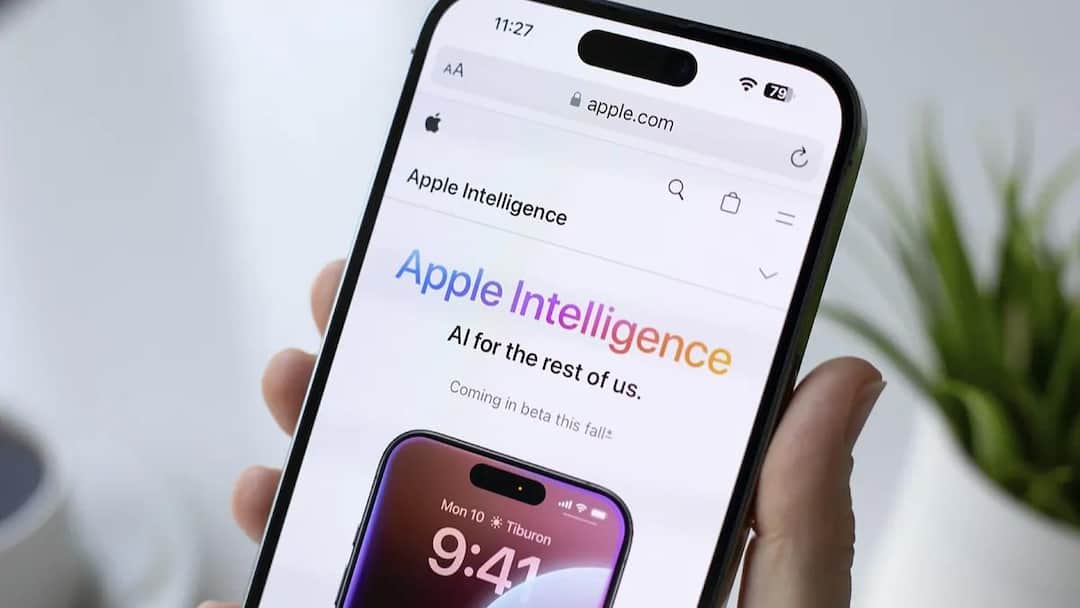
Apple Intelligence: Apple has introduced its new AI system Apple Intelligence with iOS 18. It has features like Writing Tools, Notification Summary, Image Playground, Genmoji and smarter Siri than before. These features sound quite advanced but in reality many users find them superfluous and useless. For this reason, many people want to remove them from their phone, tablet or Mac. If you are also among them then this guide is useful for you.
Why do people want to turn off Apple Intelligence?
Apple Intelligence may look like future tech, but it also has some disadvantages. On top of that, it takes up a good chunk of your device’s storage, in some cases up to 7GB. Additionally, most users do not use AI-generated summaries or images on a daily basis. Many times the notification summary does not provide correct information, which increases the confusion. Some people do not like the AI process running in the background and to be honest, not everyone is going to buy a new phone just for AI features.
Which devices have Apple Intelligence?
Apple Intelligence is not provided in every Apple device. It works only on new and powerful hardware. This includes the iPhone 15 Pro and newer models, iPhone Air, Macs and iPads with M-series chips, as well as the new iPad mini. You will see this feature only if your device falls in one of these categories.
How to check how much storage Apple Intelligence is taking?
Before turning off Apple Intelligence, it is important to know how much space it is taking up on your device. For this you will have to go to Settings and open the General section. Here you will get the option of iPhone Storage or iPad Storage. After this tap on iOS or iPadOS. Here you will see storage information related to Apple Intelligence. The thing to keep in mind is that even after turning off the feature, some space may appear temporarily reserved but the system itself vacates it when needed.
How to turn off Apple Intelligence completely?
If you want to eliminate it from the roots then the method is quite straightforward. Open Settings on iPhone or iPad, while on Mac go to System Settings. After this find the option Apple Intelligence & Siri. Here you will find a switch to turn off Apple Intelligence. As soon as you close the switch, you will be asked for confirmation, once you accept this feature, it will stop completely.
Which features will not work if you turn off Apple Intelligence?
Once Apple Intelligence is turned off, features like Siri with Writing Tools, Notification Summaries, Visual Intelligence, Genmoji, and ChatGPT will stop working. The Image Playground app will remain in your phone but it will not be possible to create new images from it. The Image Wand feature found in the Notes app will also be disabled.
Can only selected features be turned off?
If you do not want to turn off the entire Apple Intelligence and want to remove only some specific features, then this is also possible. For this, go to Settings and open the Apps section and select the app in which you do not want AI features like Messages. Here options like Summarise Messages can be turned off. However, this is not the case with Writing Tools because Apple does not give the option to turn it off depending on the individual app.
How to stop Apple Intelligence through Screen Time?
Another way is to use Screen Time. Open Screen Time in Settings and turn on Content & Privacy Restrictions. After this, go to Intelligence & Siri section and set options like Image Creation, Writing Tools and ChatGPT extension to ‘Don’t Allow’. With this, many features related to AI will be automatically blocked.
Is Apple Intelligence really useful right now?
To be honest, Apple Intelligence doesn’t seem completely perfect yet. Some features, like Photo Clean Up, are really useful, but many things still seem incomplete and unnecessary. If these features are bothering you too much or you want your storage back, then it is better to turn them off. When Apple improves it in the future, it can be reused if desired.
Also read:
This feature of WhatsApp is dangerous! Bank account can be emptied in one go

